Introduction – Building My Own Weather App (Web + Android)
Creating a weather app might sound simple at first, but when you start working on it, you’ll realize there are so many interesting things happening behind the scenes. In this blog, I am sharing everything about my Weather App project, including the idea, planning, how it works, how I coded it using HTML, CSS, JavaScript for the website version and Java + XML for the Android application.
This article is not a formal documentation type, instead it’s a complete human-written blog style explanation that includes the journey, mistakes, corrections, learning, and the final fully-working output. Some grammar might be not 100% perfect and the writing is informal, because I want it to feel real and genuine, not AI-polished.
This blog will also help students who are looking for weather app project documentation, mini project ideas, or final year project notes. Everything is explained in a simple manner so even beginners can understand the full flow of API usage, asynchronous fetching, weather icons logic, and Android app integration.
Why I Made This Weather App? (My Personal Motivation)
Honestly, the main motivation came when I used a simple weather website that took too long to load and showed a lot of ads. I thought:
“Why not build my own clean and simple weather app that just gives the information I need?”
Also, working with APIs was something I always wanted to learn more deeply. The OpenWeatherMap API looked easy at first, but after working with JSON responses, icons, error handling, and multiple conditions, I learnt so many new things.
I also wanted to create something that works on both web and Android, because a lot of people check weather on mobile instead of laptop these days. So I built a cross-platform weather app with the same core logic but different UI.
What This Weather App Actually Does (Project Goal)
The main features of the app are:
- Fetch real-time weather data for any city
- Display temperature, humidity, wind speed, and overall weather condition
- Show weather icons (sun, clouds, rain, etc.)
- Error message for invalid or unknown cities
- Clean UI for quick checking
- Default weather display when the app loads (example: Chennai)
- Works on both web browser and Android mobile
This blog covers the full documentation + description + modules + code logic, all in one place.
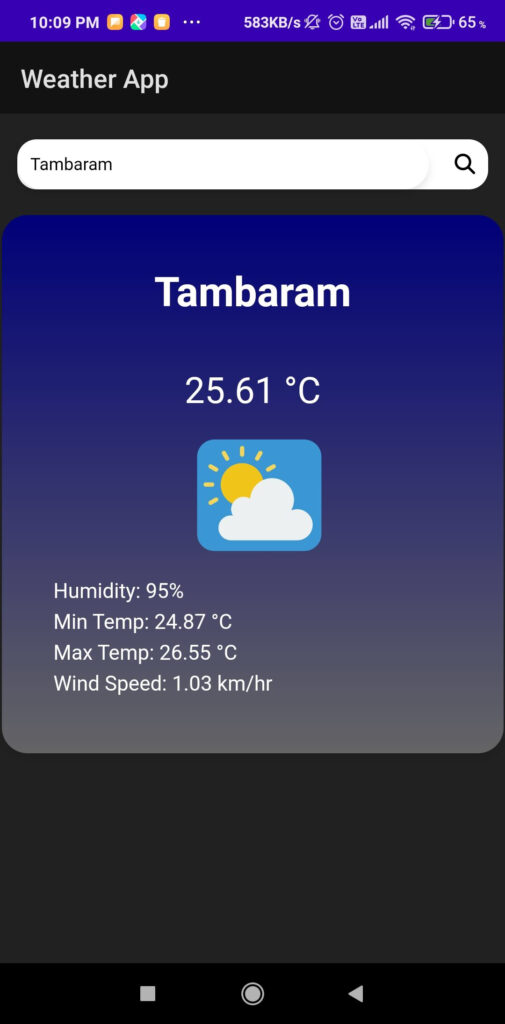
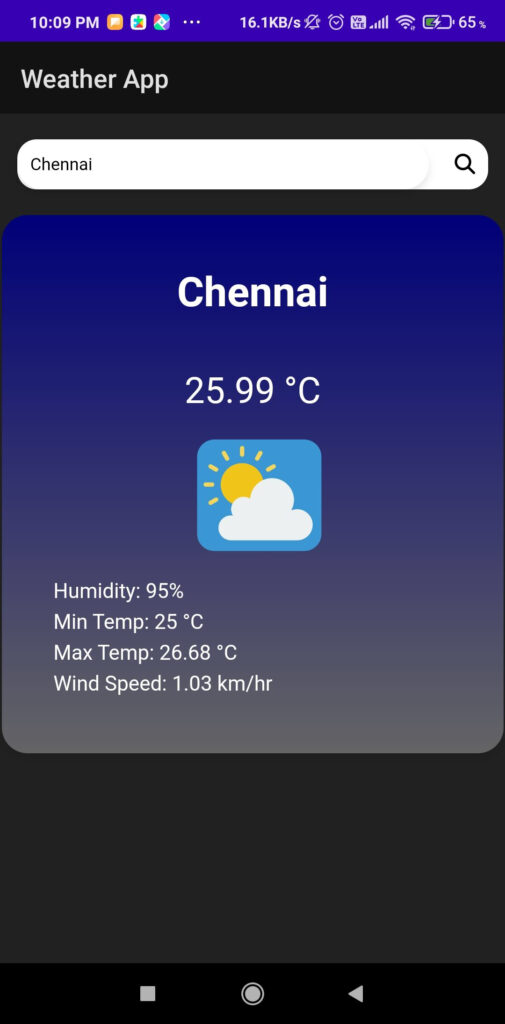
Output ScreenShot
Short Abstract
This project is basically a weather checking system where the user just types a city name and gets the live weather data instantly. It uses the OpenWeatherMap API, which provides worldwide weather details.
The frontend part is made using:
- HTML
- CSS
- JavaScript
For the mobile version, I used:
- Java
- XML layout design
- Android Studio
When the user enters a city name, the app takes it, sends a request to the API, receives a JSON response, extracts the needed data, and shows it nicely on the screen. The app also displays icons for different weather conditions which makes the UI look modern and friendly.
Along with that, I have implemented error messages, default city weather, and UI clearing before every new search.
Understanding How a Weather App Works
Before building the app, I spent time understanding how weather APIs work. I noticed that weather data is not stored locally; it must be fetched live from online services. This means the app must always talk to a server.
So I planned the project into these steps:
- Search bar input
- Send API request
- Receive JSON weather data
- Extract temperature, humidity, wind, etc.
- Show icons and values
- Handle errors
- Clear previous data
This small breakdown helped me create modules for the project.
Modules Breakdown (Explained Like a Student Would)
1. UI Module
This module handles the website layout using HTML and CSS. I created:
- Search box
- Button
- Weather output card
- Icons area
- Error message area
JavaScript controls the dynamic updates here.
2. API Request Module
This part handles all the fetching:
- API Key
- API URL
- Fetch() request
- Async/await functions
- Response handling
- Error conditions
I kept the code clean so I can reuse it for Android too.
3. Data Processing Module
After getting the JSON, I extract:
- City name
- Temperature
- Humidity
- Wind speed
- Weather condition (like Clouds, Rain, Sunny)
Then I map the condition to an icon.
4. Clear/Reset Module
This is simple but important. Before showing a new city’s weather, the old one must be cleared, or else the UI looks messy.
5. Initialization Module
When the app loads, it automatically fetches weather for Chennai by default.
This makes the UI look active instantly instead of empty.
Overall Flow of the Weather App
- User opens the website → Default weather loads
- User enters a city
- JavaScript clears previous output
- App builds the API URL
- Sends request
- API returns JSON
- App extracts values
- UI updates with new data
- If wrong city → Show “City not found”
This is the entire cycle.
🌤️ Features of My Weather App
✔️ Real-time weather data
✔️ Clean and simple UI
✔️ Weather icons for different conditions
✔️ Error handling
✔️ Mobile + Web support
✔️ Default city on first load
✔️ Lightweight and fast
The OpenWeatherMap API (Short Explanation)
I used the Current Weather Data API, which returns:
- Main > temp
- Main > humidity
- Wind > speed
- Weather > description
- Weather > icon
This API is free for basic usage.
Web Version (HTML + CSS + JavaScript)
Some Challenges I Faced While Coding
- JSON deeply nested values confused me at first
- Weather icons mapping took time
- Async function errors were tricky
- CSS responsiveness for mobile view
- Handling wrong input values
But after trial and error, everything worked perfectly.
Android Version (Java + XML)
I recreated all the logic in Java using:
- HttpURLConnection
- InputStream
- JSON parsing
- TextViews and ImageView
- Error toast messages
- API call inside a separate thread
Android version looks like:
- City input
- Button
- Weather display
- Icons
- Error messages
Everything same as web, but in app format.
Error Handling in This Project
If the user types a wrong city or API cannot load:
→ Show: City Not Found
This improves user experience.
Why This Weather App Is Good for Students & Beginners
- Teaches API usage
- Easy to customize
- Shows real-world application
- Works cross-platform
- Helps understand JSON parsing
- Good for college mini-project submission
- Code is simple and readable
Learning Outcomes From This Project
After finishing this project, I understood:
- How APIs function
- Importance of asynchronous programming
- Mapping JSON data to UI
- Creating responsive design
- Handling exceptions
- Android threading
- Cross-platform development workflows
This project gave me confidence to work on other API-based apps too.
Conclusion
Building this weather app was a great experience for me because it taught me a lot about APIs, UI updates, and error handling. I started with simple requirements and ended up learning much more than expected. Whether someone wants to build a weather app for learning, college project, internship task, or personal use, this kind of project is really helpful.
I have included all modules, flow, explanation, and project details in this blog. You can modify it and build your own version easily.
If you want, I can also provide:
✔️ Full project code
✔️ GitHub-ready documentation
✔️ Android APK
✔️ Screenshots
✔️ ER diagram, DFD, UML
✔️ PPT for college submission
Learn more about weather APIs on OpenWeatherMap: https://openweathermap.org/api
JavaScript Fetch API documentation: https://developer.mozilla.org
✔ Keys
- This weather app project helped me understand how real-time API integration works in both web and Android environments.
- Anyone who learns this weather app project can easily extend it into a full climate monitoring system.
- The main objective of this weather app project is to deliver accurate weather data instantly.
- In this weather app project, I used the OpenWeatherMap API for live temperature, humidity, and wind speed.
- This weather app project is perfect for students looking for a simple but real-time API-based application.
- My weather app project covers UI design, API requests, JSON parsing, and weather icon mapping.
- The Android version of this weather app project works smoothly with Java and XML.