Introduction
A complete step-by-step guide to building a reliable cellular IoT MQTT connection using STM32 and Quectel EC200U
When I first started experimenting with the Quectel EC200U-CN cellular module, my goal sounded simple:
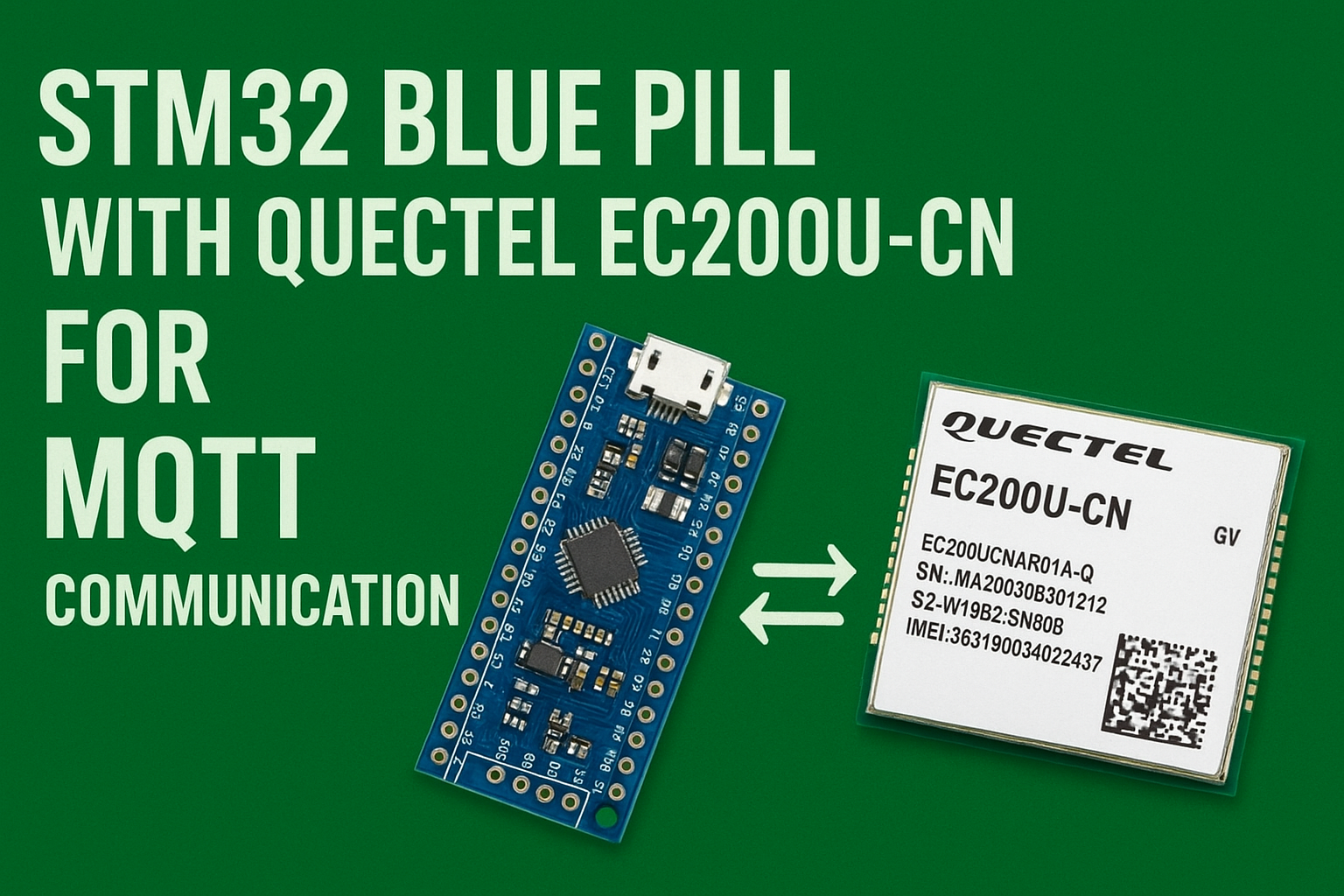
I wanted my microcontroller — an STM32 Blue Pill — to talk to the internet through 4G, publish sensor data (temperature, gas, distance, etc.) to an MQTT broker, and also receive control commands from the cloud.
In theory, the EC200U supports MQTT natively through AT commands.
In practice, the documentation was dense, scattered, and filled with extra features I didn’t need — certificates, SSL, Alibaba Cloud examples, obscure configuration flags. All I wanted was a minimal, stable publish/subscribe setup.
After many late nights with the datasheet, serial console, and coffee, I finally found a clean, repeatable path.
First, I verified the command sequence using a Python script over a USB-TTL interface.
Once that worked flawlessly, I ported the logic to the STM32, sending and receiving AT commands through UART.
This post documents that entire process — from proof-of-concept to embedded implementation — so that others can save time and frustration.
The Challenge
When you read Quectel’s MQTT application note, it looks simple:
- Configure PDP context (mobile data)
- Open MQTT socket
- Connect client
- Subscribe and publish
But the devil is in the details. Between the AT+QICSGP, AT+QIACT, AT+QMTOPEN, AT+QMTCONN, AT+QMTSUB, and AT+QMTPUBEX commands, a small mistake or a missing delay can make the entire sequence fail.
The module’s feedback messages (URCs) aren’t always obvious either — and debugging on a microcontroller serial line is tedious.
So, I decided to start simple: test everything on PC first.
Phase 1 – Testing MQTT with Python
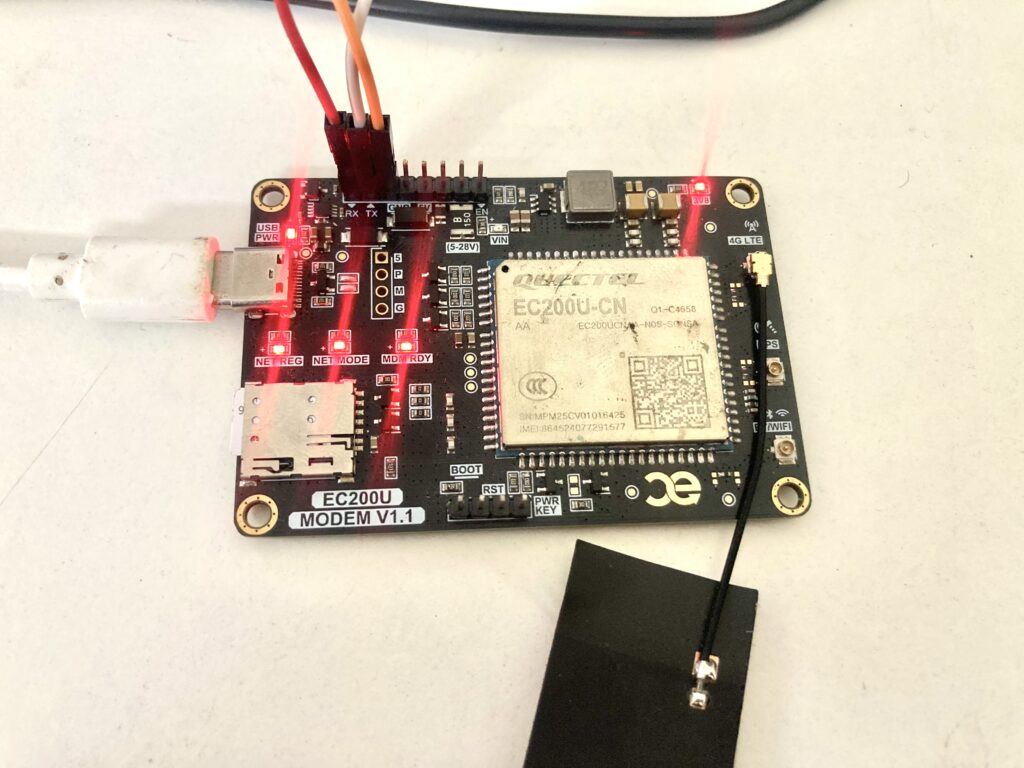
I used a USB-TTL converter (connected to RX/TX of the EC200U module) and a small Python script to send AT commands and observe responses.
This helped me experiment quickly without re-flashing firmware each time.
Here’s the Python code I used:
import serial, time

SERIAL_PORT = "COM8"
BAUD_RATE = 115200

def send_at_command(ser, command, timeout=2):
    print(f">>> {command}")
    ser.write((command + "\r\n").encode())
    time.sleep(0.1)
    end = time.time() + timeout
    response = b""
    while time.time() < end:
        if ser.in_waiting:
            response += ser.read(ser.in_waiting)
        if b"OK" in response or b"ERROR" in response or b"+QMT" in response:
            break
        time.sleep(0.1)
    print(f"<<< {response.decode(errors='ignore').strip()}")
    return response.decode(errors='ignore')

def read_incoming_messages_forever(ser):
    print("Listening for incoming MQTT messages (Ctrl+C to exit)...")
    buffer = ""
    try:
        while True:
            if ser.in_waiting:
                data = ser.read(ser.in_waiting).decode(errors='ignore')
                buffer += data
                while "\r\n" in buffer:
                    line, buffer = buffer.split("\r\n", 1)
                    line = line.strip()
                    if line.startswith("+QMTRECV:"):
                        print(f"*** MQTT Message Received: {line}")
            time.sleep(0.1)
    except KeyboardInterrupt:
        print("\nStopped listening.")

def main():
    with serial.Serial(SERIAL_PORT, BAUD_RATE, timeout=1) as ser:
        send_at_command(ser, 'AT+QICSGP=1,1,"airtelgprs.com","","",1')
        send_at_command(ser, 'AT+QIACT=1', timeout=10)
        send_at_command(ser, 'AT+QMTOPEN=0,"test.mosquitto.org",1883', timeout=10)
        time.sleep(5)
        send_at_command(ser, 'AT+QMTCONN=0,"client01"', timeout=10)
        time.sleep(5)
        send_at_command(ser, 'AT+QMTSUB=0,1,"home/sensors/temperature",0')
        payload = '{"temp":25.5}'
        pub = f'AT+QMTPUBEX=0,0,0,0,"home/sensors/temperature",{len(payload)},"{payload}"'
        send_at_command(ser, pub)
        read_incoming_messages_forever(ser)
        send_at_command(ser, 'AT+QMTDISC=0')
        send_at_command(ser, 'AT+QIDEACT=1')
if __name__ == "__main__":
    main()
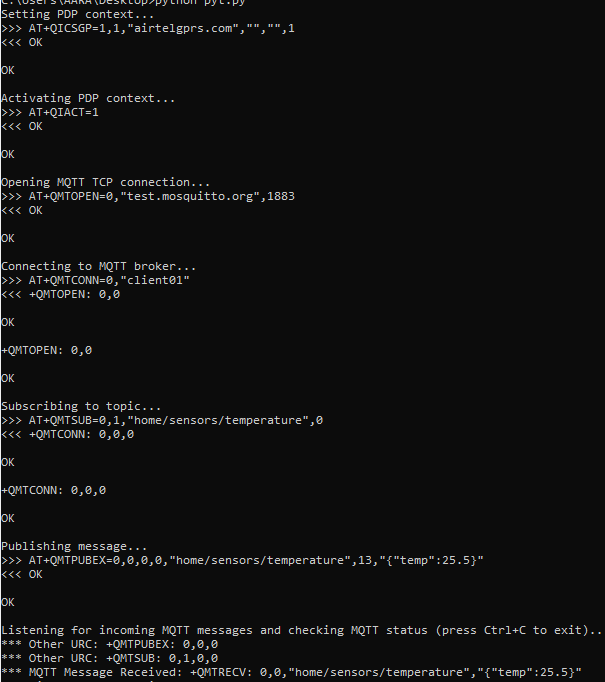
Terminal Output:
How It Works
- Open serial connection to the EC200U.
- Set PDP context (
AT+QICSGP=1,1,"airtelgprs.com","","",1") — defines how the module accesses the cellular data network. - Activate PDP (
AT+QIACT=1) — starts the data session. - Open MQTT TCP connection to
test.mosquitto.org:1883usingAT+QMTOPEN. - Connect MQTT client with
AT+QMTCONN=0,"client01". - Subscribe to topic
home/sensors/temperature. - Publish a JSON message:
{"temp":25.5}usingAT+QMTPUBEX. - Listen forever for any incoming MQTT messages via URCs like
+QMTRECV:. - Disconnect and deactivate PDP when done.
The script printed every command and response, so debugging was easy.
After running it, I could see my published data appear on the broker dashboard (I used test.mosquitto.org and mqttx.app to verify).
Messages sent from MQTTX to the topic were instantly received in the Python console — perfect two-way communication.
At this point, the module-broker link was confirmed solid.
Now came the real job: replicating this sequence inside the STM32.
Phase 2 – Porting to STM32 Blue Pill
The STM32 Blue Pill is a cheap but powerful board based on the STM32F103C8T6 MCU.
It has a couple of USARTs, enough flash and RAM, and good library support (HAL, LL, or bare-metal).
The plan:
- Connect EC200U UART to STM32 UART1 (PA9 TX, PA10 RX).
- Use 115200 baud.
- Write simple functions to send AT commands, wait for “OK” or “ERROR,” and parse responses.
- Reuse the same command order proven in Python.
Hardware Connections
| EC200U Pin | STM32 Blue Pill | Notes |
|---|---|---|
| TXD | PA10 (RX) | UART receive |
| RXD | PA9 (TX) | UART transmit |
| GND | GND | Common ground |
| VCC | 3.8 V–4.0 V | Needs stable power (can’t use 3.3 V pin) |
| PWRKEY | GPIO or manual button | Hold low for ~1 s to power on |
Power Tip:
The EC200U draws high peak currents (1 A+) during network attach.
Add a 1000 µF capacitor close to VCC and ensure your supply can handle bursts.
STM32 Firmware Design
I kept the structure modular:
- uart.c – handles UART transmit/receive with interrupt buffer.
- mqtt_module.c – wraps AT commands into clean functions (
Module_Init,MQTT_Subscribe,MQTT_Publish). - main.c – application loop: read sensors → publish data → check messages.
Below are simplified but working examples.
UART Handling
#define RX_BUF_SIZE 512
char rxBuf[RX_BUF_SIZE];
volatile uint16_t rxPos = 0;

void USART1_IRQHandler(void) {
    if (USART1->SR & USART_SR_RXNE) {
        char c = USART1->DR;
        if (rxPos < RX_BUF_SIZE-1) rxBuf[rxPos++] = c;
        rxBuf[rxPos] = '\0';
    }
}

void UART_Send(const char *s) {
    while (*s) {
        while (!(USART1->SR & USART_SR_TXE));
        USART1->DR = *s++;
    }
    while (!(USART1->SR & USART_SR_TXE));
    USART1->DR = '\r';
    while (!(USART1->SR & USART_SR_TXE));
    USART1->DR = '\n';
}

bool WaitFor(const char *token, uint32_t timeout) {
    uint32_t start = HAL_GetTick();
    while (HAL_GetTick() - start < timeout) {
        if (strstr(rxBuf, token)) return true;
    }
    return false;
}
MQTT Functions
bool Module_Init(void) {
    UART_Send("AT");
    if (!WaitFor("OK", 1000)) return false;

    UART_Send("AT+CPIN?");
    if (!WaitFor("READY", 2000)) return false;

    UART_Send("AT+QICSGP=1,1,\"airtelgprs.com\",\"\",\"\",1");
    WaitFor("OK", 2000);

    UART_Send("AT+QIACT=1");
    if (!WaitFor("OK", 10000)) return false;

    UART_Send("AT+QMTOPEN=0,\"test.mosquitto.org\",1883");
    if (!WaitFor("+QMTOPEN: 0,0", 10000)) return false;

    UART_Send("AT+QMTCONN=0,\"client01\"");
    if (!WaitFor("+QMTCONN: 0,0,0", 10000)) return false;

    return true;
}

bool MQTT_Subscribe(const char *topic) {
    char cmd[128];
    sprintf(cmd, "AT+QMTSUB=0,1,\"%s\",0", topic);
    UART_Send(cmd);
    return WaitFor("+QMTSUB: 0,1,0,0", 5000);
}

bool MQTT_Publish(const char *topic, const char *payload) {
    char cmd[256];
    sprintf(cmd, "AT+QMTPUBEX=0,0,0,0,\"%s\",%u,\"%s\"",
            topic, (unsigned)strlen(payload), payload);
    UART_Send(cmd);
    return WaitFor("OK", 5000);
}
Main Application
int main(void) {
    HAL_Init();
    SystemClock_Config();
    UART_Init();

    if (!Module_Init()) {
        // blink LED or print error
    }

    MQTT_Subscribe("home/sensors/commands");

    while (1) {
        float temp = Read_Temperature();
        float dist = Read_Distance();
        float gas  = Read_Gas();

        char payload[128];
        sprintf(payload,
                "{\"temp\":%.1f,\"distance\":%.1f,\"gas\":%.1f}",
                temp, dist, gas);

        MQTT_Publish("home/sensors/data", payload);
        HAL_Delay(10000);  // send every 10s

        // Parse rxBuf for incoming "+QMTRECV" messages
        if (strstr(rxBuf, "+QMTRECV:")) {
            Process_MQTT_Message(rxBuf);
            rxPos = 0; rxBuf[0] = 0;
        }
    }
}
Now, each sensor reading is automatically pushed to the cloud, and any command sent from MQTT (like {"cmd":"fan_on"}) can be parsed by Process_MQTT_Message() to toggle GPIO outputs.
Understanding the AT Command Flow
Here’s the essential sequence that worked reliably:
| Step | Command | Description |
|---|---|---|
| 1 | AT | Basic check |
| 2 | AT+QICSGP=1,1,"<APN>","","",1 | Set APN (1 = IPv4) |
| 3 | AT+QIACT=1 | Activate PDP context |
| 4 | AT+QMTOPEN=0,"broker.hivemq.com",1883 | Open TCP connection to broker |
| 5 | AT+QMTCONN=0,"client01" | Connect MQTT client |
| 6 | AT+QMTSUB=0,1,"topic/name",0 | Subscribe |
| 7 | AT+QMTPUBEX=0,0,0,0,"topic",len,"payload" | Publish |
| 8 | AT+QMTDISC=0 | Disconnect |
| 9 | AT+QIDEACT=1 | Deactivate PDP |
The URCs (+QMTOPEN:, +QMTCONN:, +QMTRECV:) report success or indicate disconnections.
Common Pitfalls and Lessons Learned
1. Power Stability
Most “mysterious” MQTT failures were actually power issues.
When the EC200U transmits, it draws large spikes.
Using thin jumper wires or powering from 3.3 V pin caused brownouts.
After adding a dedicated 4 V 3 A supply with big capacitors (470 µF + 100 nF), all random resets disappeared.
2. Network Type (IPv4 vs IPv6)
Some SIM networks (for example Jio in India) default to IPv6-only.
Since test.mosquitto.org is IPv4, connections failed with error +QMTOPEN: 0,5.
Switching to an APN with IPv4 support (e.g., airtelgprs.com) fixed it.
3. Timing Between Commands
The EC200U often needs a few seconds between major steps like QMTOPEN and QMTCONN.
In Python I used time.sleep(5); in STM32 I used HAL_Delay(5000).
Skipping these waits sometimes made +QMTCONN return errors.
4. URC Handling
The module sends asynchronous notifications such as+QMTRECV: 0,1,0,"home/sensors/commands",18,"{\"cmd\":\"fan_on\"}".
Your MCU must not block too long in other tasks — otherwise you’ll miss data.
Use interrupt-driven UART with a circular buffer.
5. Documentation Overload
The official PDF includes advanced topics (TLS, Alibaba Cloud auth). For most hobby or prototyping cases, ignore them.
A minimal workflow using only QICSGP, QIACT, QMTOPEN, QMTCONN, QMTSUB, QMTPUBEX works perfectly.
6. Broker Disconnections
If you stop publishing for several minutes, NAT timeouts or broker keep-alive expiry can disconnect you.
Either publish small keep-alive pings or reconnect when you receive +QMTSTAT: errors.
7. Debugging Strategy
Always keep a USB-TTL connected in parallel with the MCU UART when testing new code.
You can monitor AT traffic and quickly catch mistakes like missing quotes or wrong commas.
Adding Sensors and Cloud Control
Once MQTT worked, integrating sensors and actuators became straightforward.
- Temperature sensor: LM35 → ADC1 IN0
- Distance sensor: HC-SR04 → two GPIO pins with timer capture
- Gas sensor: MQ-2 → ADC input
- Actuator example: fan relay on PB0
Every 10 seconds the MCU reads all sensors, formats a JSON string, and publishes it.
The cloud dashboard (e.g., Node-RED or MQTTX) visualizes the data.
To control devices remotely, I subscribe to a command topic home/sensors/commands.
Whenever the broker sends a message, the module reports it:
+QMTRECV: 0,1,0,"home/sensors/commands",20,"{\"cmd\":\"fan_off\"}"
The MCU parses that payload:
if (strstr(rxBuf, "fan_on")) {
    HAL_GPIO_WritePin(FAN_GPIO_Port, FAN_Pin, GPIO_PIN_SET);
} else if (strstr(rxBuf, "fan_off")) {
    HAL_GPIO_WritePin(FAN_GPIO_Port, FAN_Pin, GPIO_PIN_RESET);
}
Within seconds, the fan state changes — full wireless remote control over 4G.
Reliability and Reconnect Logic
For continuous deployment, I added a small state machine:
| State | Action |
|---|---|
| INIT | Initialize module, PDP, MQTT connect |
| CONNECTED | Publish data periodically |
| ERROR | Try reconnection after 10 s |
| DISCONNECTED | Re-run Module_Init() |
| RECV_MSG | Handle +QMTRECV payload |
Whenever a publish fails or a URC +QMTSTAT: indicates disconnect, the system falls back to INIT and re-establishes the link.
This simple logic makes the device recover automatically from temporary network drops.
The Results
After final tuning, the setup became rock-solid.
I left it running for days — publishing temperature, distance, and gas data every 10 seconds — and it kept reconnecting gracefully whenever the network dropped.
From the MQTT dashboard, I could:
- Monitor live sensor data
- Send commands like
{"cmd":"fan_on"}or{"cmd":"read_now"} - Watch the STM32 respond instantly
It effectively turned my small board into a fully wireless IoT node over the cellular network — no Wi-Fi, no Ethernet, just SIM-based MQTT communication.
Final Thoughts
This project taught me that cellular IoT isn’t as intimidating as it first seems.
The Quectel EC200U-CN, though documentation-heavy, is a powerful module once you know the core AT commands.
Starting from Python helped me isolate problems and understand the timing and responses.
Then porting to STM32 was simply a matter of sending the same strings through UART — no fancy libraries required.
Now the same structure can be extended to:
- Multiple sensors
- Secure (TLS) MQTT connections
- Cloud dashboards (AWS IoT, HiveMQ, Adafruit IO)
- Remote firmware updates via MQTT messages
It’s a great foundation for any cellular IoT product.
Key Takeaways
- Always test AT command sequences on PC before MCU integration.
- Power stability is crucial for 4G modules.
- Use clear delays between connection steps.
- Keep UART interrupt-based and non-blocking.
- Ignore advanced AT options unless needed — minimal setup is enough.
- Reconnect automatically after any disconnection.
With this workflow, your STM32 Blue Pill can confidently talk to the cloud through the EC200U-CN, publish real sensor data, and respond to control messages — a true two-way IoT link over cellular.
Author’s Note:
This write-up comes from my own hands-on experience.
I tried multiple AT command combinations and code examples before finding this simple, consistent approach.
If you’re struggling with the EC200U or MQTT integration, I hope this guide saves you the same frustration I had and helps you get your project online faster.