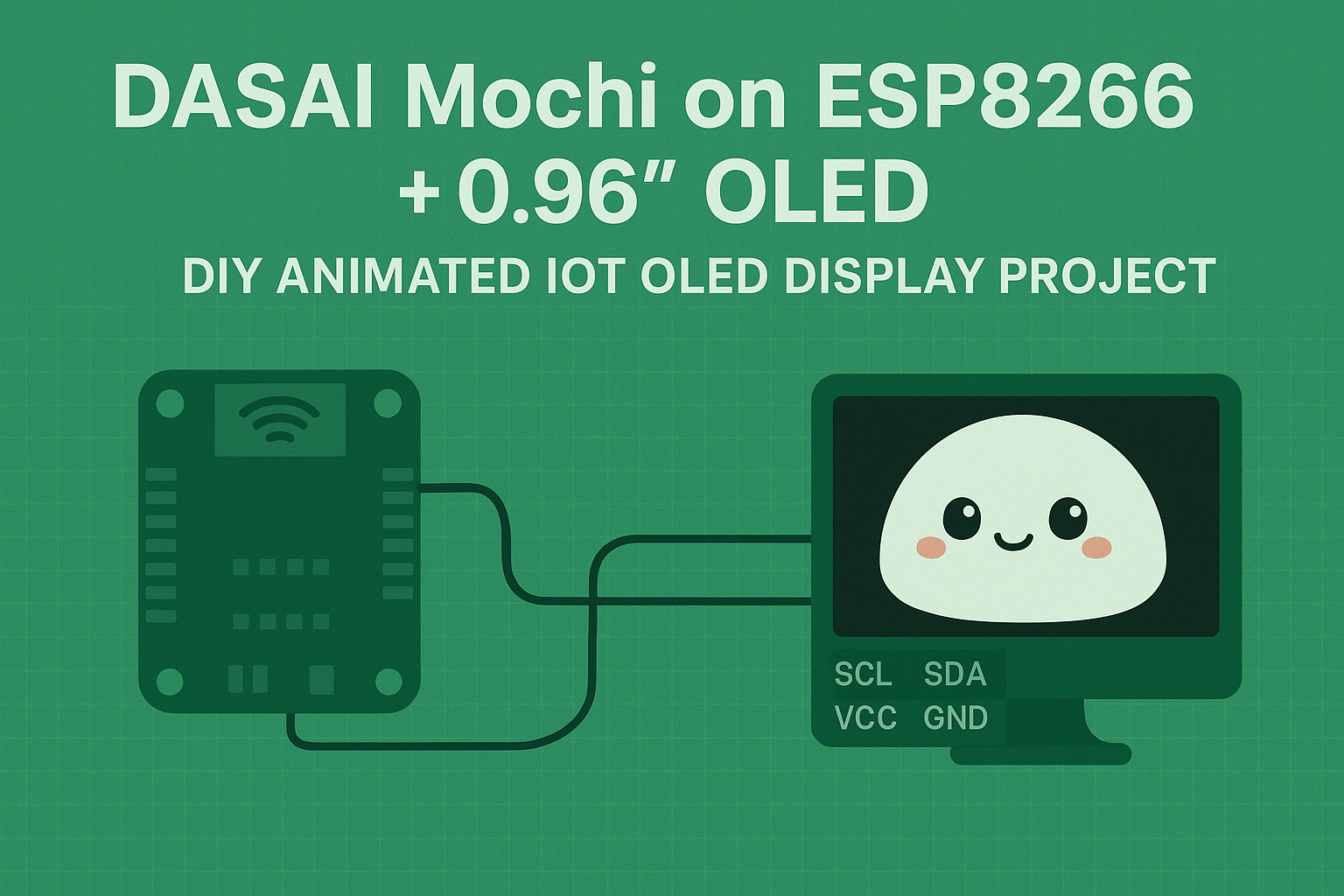
If you’re looking for a fun, creative, and tech-savvy DIY project, then DASAI Mochi on ESP8266 + 0.96 OLED is the perfect choice. This innovative project transforms your ESP8266 microcontroller and OLED screen into a cute, interactive, and Wi-Fi-enabled companion that displays animations, text, time, and even custom images. Whether you’re a hobbyist, maker, or IoT enthusiast, the DASAI Mochi project combines coding, electronics, and creativity into one engaging experience.
What Is DASAI Mochi on ESP8266 + 0.96 OLED?
DASAI Mochi on ESP8266 + 0.96 OLED is an open-source Arduino-based project that brings life to a small OLED screen using the ESP8266 Wi-Fi module. It displays an animated “Mochi” character — a cute digital pet that reacts, blinks, and even shows messages or the current time.
This project goes beyond simple OLED demos. It includes a built-in Wi-Fi control panel, supports custom animations and BMP image uploads, and offers real-time date and time display through NTP synchronization. Everything is controlled via a web interface, making it a powerful IoT-enabled display system.
Key Features of DASAI Mochi on ESP8266 + 0.96 OLED
Here are the top features that make this project stand out:
- OLED Display Animation: Shows adorable Mochi animations, facial expressions, and text.
- Web Control Panel: Easily control and configure Mochi through a web browser.
- NTP Time Display: Syncs real-world time from NTP servers.
- Custom BMP Uploads: Upload and display your own images.
- Non-Volatile Storage: Saves your settings to flash memory using LittleFS.
- Sleep & Wake Modes: Power-saving mode with manual or web-based wake-up.
- Multiple Time Zones: Configure and display local time easily.
- Open-Source Code: Fully editable Arduino sketch.
If you need a animation header files or RAW code to Comment below the post!.
Components Required for the DASAI Mochi ESP8266 Project
Before getting started, you’ll need a few basic components. Here’s the full list:
| Component | Description |
|---|---|
| ESP8266 Board | NodeMCU, Wemos D1 Mini, or any ESP8266 module |
| 0.96″ OLED Display (SSD1306) | 128×64 I2C OLED screen |
| Push Button | Used for manual wake-up or interactions |
| Jumper Wires | For connections between ESP8266 and OLED |
| Breadboard (Optional) | For easy prototyping |
| Micro USB Cable | For power and programming |
Wiring Diagram
| OLED Pin | ESP8266 Pin |
|---|---|
| VCC | 3.3V |
| GND | GND |
| SCL | D1 |
| SDA | D2 |
Make sure you connect the OLED display via I2C protocol, which is simple and supported by the Adafruit SSD1306 library.
How the DASAI Mochi on ESP8266 + 0.96 OLED Works
When powered on, the ESP8266 initializes the OLED screen, loads saved configurations (like boot text and animation settings) from LittleFS, and starts broadcasting a Wi-Fi Access Point. You can connect to this AP to access the Mochi control panel.
Here’s the workflow:
- ESP8266 boots and shows startup animation/text.
- Creates Wi-Fi Access Point (default SSID: ZITo_AP, password: 12345678).
- Hosts a web-based dashboard accessible at http://192.168.4.1.
- Lets you customize text, animation toggles, and upload BMP images.
- Displays time or random animations on the OLED.
- Enters sleep mode after inactivity (optional).
Software and Library Requirements
Before uploading the Arduino sketch, make sure you have these libraries installed:
- Adafruit_GFX
- Adafruit_SSD1306
- ESP8266WiFi
- ESP8266WebServer
- LittleFS
- time.h
You can install them via the Arduino IDE Library Manager.
Step-by-Step Setup Guide
Step 1: Install ESP8266 Board in Arduino IDE
- Go to File → Preferences.
- In “Additional Board Manager URLs,” add:
http://arduino.esp8266.com/stable/package_esp8266com_index.json - Go to Tools → Board → Boards Manager, search for “ESP8266,” and install it.
Step 2: Open the DASAI Mochi Sketch
Paste or open your Arduino .ino file containing the full DASAI Mochi source code.
Step 3: Select the Correct Board and Port
- Board:
NodeMCU 1.0 (ESP-12E Module) - Flash Size:
4MB (FS:1MB OTA:~512KB) - Upload Speed:
115200
Step 4: Upload the Code
Click the upload button and wait until the code is flashed successfully.
Step 5: Access Mochi’s Web Interface
Open Serial Monitor at 115200 baud. You’ll see:
AP Started: ZITo_AP
IP: 192.168.4.1
Connect your phone or computer to the ZITo_AP Wi-Fi network and open your browser to visit:
http://192.168.4.1Firmware flash using bin file loader to flash or using NodeMCU flasher download
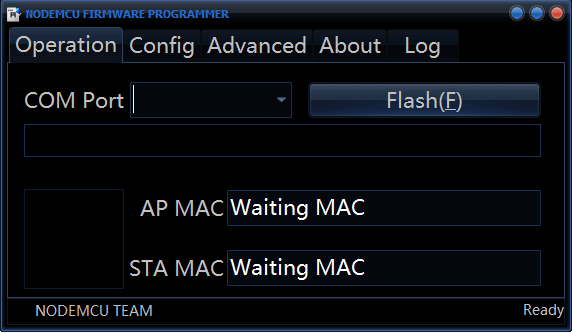
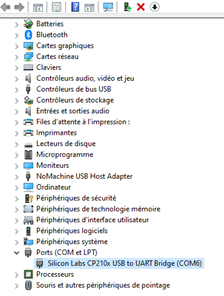
Select the port of the microcontroller that you can find in the device manager.
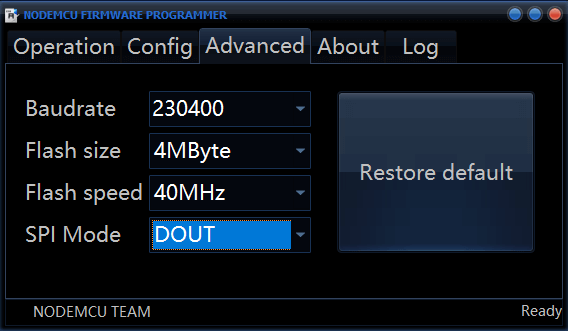
In the “Advanced” tab, select the “DOUT” option for SPI Mode.
Select the BIN file where you saved it.
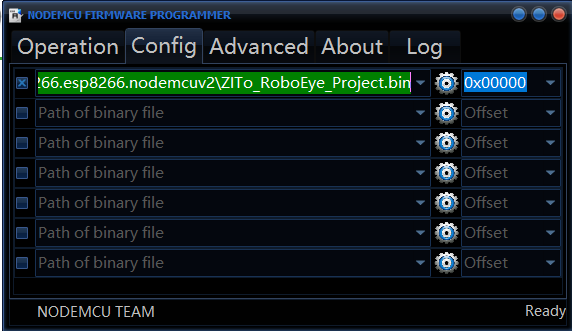
In the “Operation” tab, you can now press “Flash” to upload the binary file
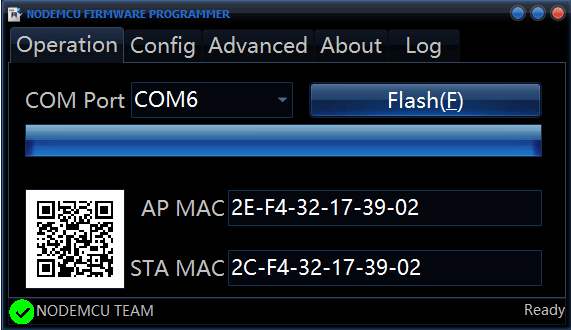
Don’t forget to reset the card so that the upload is taken into account.
Exploring the Web Control Panel
The web control panel is where all the magic happens! It’s a modern, responsive dashboard served directly from your ESP8266 board.
Features in the Web UI:
- Set Boot Text: Customize startup message shown on the OLED.
- Toggle Animations: Enable or disable Mochi’s emotions like blink, cough, heart, etc.
- Upload Custom BMPs: Upload 128×64 monochrome images.
- Show Date/Time: Displays real-time clock using NTP sync.
- Restart or Reset: Easily reboot or factory reset settings.
- Sleep Mode: Turn off the display for power saving.
Each setting you change is automatically saved to the ESP8266’s LittleFS storage, meaning your preferences persist even after rebooting.
Real-Time Clock (RTC) and NTP Synchronization
The DASAI Mochi on ESP8266 + 0.96 OLED project fetches accurate date and time from online NTP servers using this code:
configTime(0, 0, "pool.ntp.org", "time.nist.gov");
You can customize time zones (e.g., IST, PST, UTC, etc.) through the web interface. The OLED can display current time and date with optional animations.
Custom Image and BMP Uploads
Want Mochi to display your logo or a custom art piece? You can easily upload a 1-bit monochrome BMP file.
BMP Requirements:
- Resolution: 128×64 pixels
- Color Depth: 1-bit (black & white)
- Format: .bmp
Upload it through the web panel, and it will be saved as /custom.bmp in LittleFS. You can trigger it instantly or schedule it to appear at certain times.
Sleep Mode and Power Efficiency
The Mochi project also includes smart sleep mode management. After a period of inactivity, it can dim or turn off the OLED display to save power. You can wake it up using:
- The hardware button
- The web interface
/wakeUpcommand - A scheduled event
This makes DASAI Mochi on ESP8266 + 0.96 OLED ideal for battery-powered IoT setups or portable projects.
Animations in DASAI Mochi
Animations are stored as bitmap arrays in the code and played using frame sequences. Each expression—like blinking, sleeping, or smiling—is a short animation loop.
Example snippet:
const unsigned char* blinkFrames[] = { blink1, blink2, blink3, blink4 };
playAnimation(blinkFrames, 4, 100, true);
The web dashboard lets you toggle each animation individually, giving Mochi a personality that matches your mood or setup.




Understanding the Internal Code Logic
Here’s a simplified overview of how DASAI Mochi functions internally:
- Setup Phase:
Initializes OLED, Wi-Fi AP, web server, and loads saved settings. - Main Loop:
- Displays animations
- Listens for button presses
- Handles web requests
- Updates time from NTP servers
- Manages sleep/wake states
- Web Server Handlers:
Handles routes like:/setBootText/setAnimationToggles/showDateTime/setSleepMode/uploadBMP
- Storage with LittleFS:
Stores configuration in/config.jsonso that user preferences persist.
Use some other firmwares for dasai mochi -> themochi is a dasai mochi firmware, developed for ESP32C3 Module with oled Display.
Troubleshooting Common Issues
| Problem | Possible Cause | Solution |
|---|---|---|
| OLED not showing anything | Wrong I2C wiring or address | Verify connections and try 0x3C or 0x3D |
| Wi-Fi AP not visible | ESP8266 not starting AP | Check power supply and code upload logs |
| Web UI not loading | Browser cache issue | Clear cache or reconnect to ZITo_AP |
| BMP upload fails | Invalid BMP format | Ensure it’s 128×64, 1-bit monochrome |
| Time not updating | NTP blocked or no Wi-Fi | Try another NTP server or check firewall |
Ideas to Expand DASAI Mochi on ESP8266 + 0.96 OLED
Once you’ve built the basic project, here are a few creative ways to expand it:
- Display sensor data (temperature, humidity, etc.) instead of time.
- Add speech or chat features using Wi-Fi messages.
- Integrate with Home Assistant for smart home status updates.
- Use Deep Sleep for ultra-low power applications.
- Create new Mochi emotions by designing custom animations.
- Control from smartphone or voice assistant using API endpoints.
Conclusion
DASAI Mochi on ESP8266 + 0.96 OLED is not just a coding project, it’s a fun, interactive experience that merges IoT, creativity, and technology. From displaying cute animations to showing real-time data, Mochi turns your ESP8266 into a charming companion you can control from any device.
It’s the perfect mix of electronics, web development, and embedded design, all wrapped in an adorable OLED package.
Whether you’re a beginner learning about IoT or a maker wanting to build something unique, this project will spark your creativity and technical curiosity.
So grab your ESP8266, wire up your OLED, and bring DASAI Mochi to life today! 💖
More about DASAI MOCHI (External): Read on Reddit