
Testing GSM modules is extremely important in any IoT or embedded project. Before your device can communicate with servers, send GPS data, or perform remote operations, you need to ensure that your GSM module can actually connect to the network, attach to data, and respond to AT commands. This is where a dedicated GSM connectivity testing tool becomes essential.
A GSM testing tool helps you check GSM signal, read SIM card status, configure the APN, test HTTP or HTTPS internet connectivity, and verify that your module is communicating properly over serial. Instead of writing code on Arduino or ESP32 just to test your modem, you can test everything instantly through software.
One of the simplest and most effective tools available is the GSM_TESTER software. It is a Windows-based graphical tool that allows you to interact with GSM modules through a USB-TTL converter. It includes features like automatic GSM setup, HTTP testing, APN configuration, manual AT command sending, real-time logging, and serial port management.
Below is the screenshot of the GSM_TESTER interface:
Image:
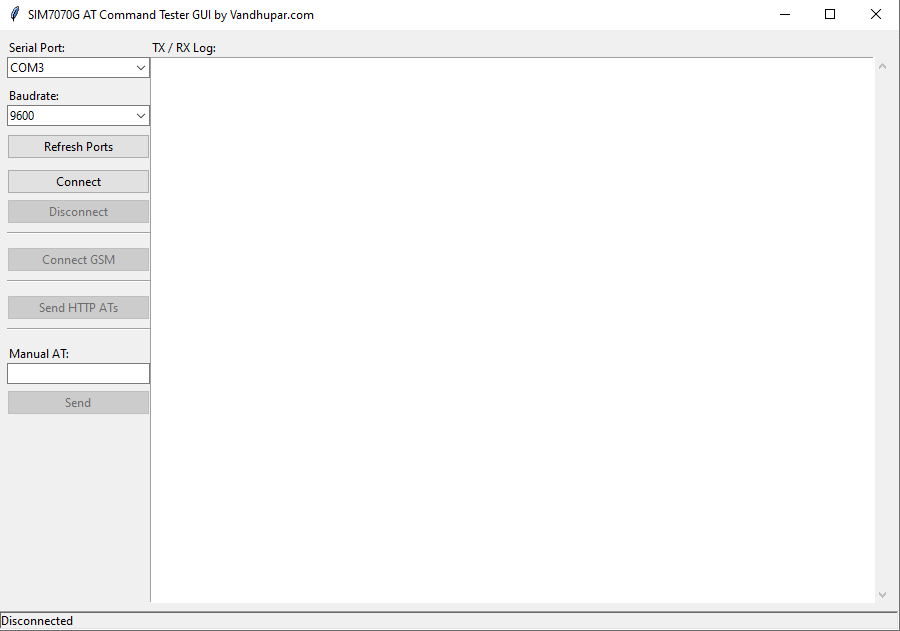
This article walks you through everything you need to know about using a GSM connectivity testing tool, how GSM_TESTER works, how to test your GSM module, and why this tool is essential for modern IoT development.
What a GSM Connectivity Testing Tool Actually Does
A GSM connectivity testing tool allows you to communicate with a GSM module through a serial interface. It sends AT commands, receives module responses, and displays them in a user-friendly log window. Instead of writing firmware on Arduino or ESP32 just to test GSM features, you can use this tool to instantly check:
- If your GSM module is responding
- Whether the SIM card is detected
- If the GSM signal is strong enough
- Whether the module is registered on a network
- If mobile data is working with your APN
- Whether HTTP/HTTPS requests work
- If the module can attach to the packet data network
This makes GSM debugging far easier and saves hours of development time.
A GSM connectivity testing tool works like a diagnostic panel for your GSM or LTE module. It exposes every aspect of communication, lets you test AT commands manually or automatically, and reduces guesswork during troubleshooting.
Why Developers Need a GSM Connectivity Testing Tool
If you work with IoT hardware, GSM modules, or cellular communication systems, you need a tool that makes testing fast and frustration-free. GSM modules can be unpredictable, and network conditions change constantly. Without proper testing software, it becomes difficult to identify where the issue lies—SIM card, antenna, APN, module firmware, or power issues.
A dedicated GSM connectivity testing tool helps you:
- Test your module before connecting it to a microcontroller
- Identify network registration issues
- Troubleshoot SIM card problems
- Monitor real-time signal levels
- Verify APN correctness before firmware development
- Test HTTP connectivity without writing a single line of code
- Reduce debugging time during IoT production
- Validate GSM performance in different locations
This is crucial for those building solutions like:
- GPS tracking devices
- Smart agriculture sensors
- Vehicle telematics systems
- Industrial IoT gateways
- Smart vending machines
- Emergency alert devices
- Energy monitoring tools
A reliable GSM connectivity testing tool ensures that the foundation of your device, its communication layer is solid.
Introducing GSM_TESTER: A Simple and Powerful GSM Connectivity Testing Tool
GSM_TESTER is a Windows application created to make GSM testing easy for everyone students, hobbyists, and professional developers. It offers all essential GSM debugging tools in a single interface:
- Automatic GSM connection
- Manual AT command testing
- HTTP/HTTPS testing
- Signal monitoring
- APN configuration
- Real-time TX/RX logging
- COM port detection
- Baudrate selection
Despite being lightweight, it provides advanced debugging features usually found in expensive professional tools.
The interface is clean and simple, with the COM port options on the left and a large TX/RX log viewer on the right. This makes it perfect for beginners as well as experienced developers.
Main Features of GSM_TESTER Explained in Simple Words
GSM_TESTER includes everything needed for GSM communication testing. Here’s a detailed and human-friendly explanation of each feature.
Manual AT Command Sender
You can type any AT command and click “Send.”
This allows you to test SMS, calls, GPRS, signal strength, module information, and more.
For example:
- AT
- AT+CSQ
- AT+CREG?
- AT+CGATT?
- AT+CGDCONT?
It gives you full control over the GSM module.
Automatic GSM Connectivity Setup
The “Connect GSM” button automates the complete handshake process. It sends a series of AT commands to:
- Ensure the module responds
- Turn off command echo
- Check SIM card status
- Monitor signal quality
- Detect network status
- Ask for APN
- Configure the PDP context automatically
This means you no longer need to type long AT commands for network activation.
HTTP/HTTPS Testing
GSM_TESTER includes a built-in function for testing API calls or HTTP URLs.
You simply enter a URL and your APN, and the tool handles:
- PDP activation
- Session initialization
- URL configuration
- HTTP request
- Response reading
This is extremely helpful for verifying cloud server connectivity.
COM Port and Baudrate Selection
GSM_TESTER automatically detects available COM ports.
You can choose your preferred baudrate, with 9600 being the default for most GSM modules.
Real-Time Logging
All transmitted (TX) and received (RX) data is displayed clearly with timestamps.
This log window helps you analyze:
- Network delays
- Timeout issues
- Unexpected responses
- Module errors
- Signal fluctuations
Logging is one of the most valuable features for debugging.
Hardware Setup: How to Connect a GSM Module to the Software
To use any GSM connectivity testing tool, including GSM_TESTER, you need to connect your module properly using a USB-TTL converter.
Required Items
- GSM module
- USB-TTL converter
- Jumper wires
- Power supply for GSM module
Connection Steps
- Connect GSM TX to USB-TTL RX
- Connect GSM RX to USB-TTL TX
- Connect GND to GND
- Power the GSM module separately
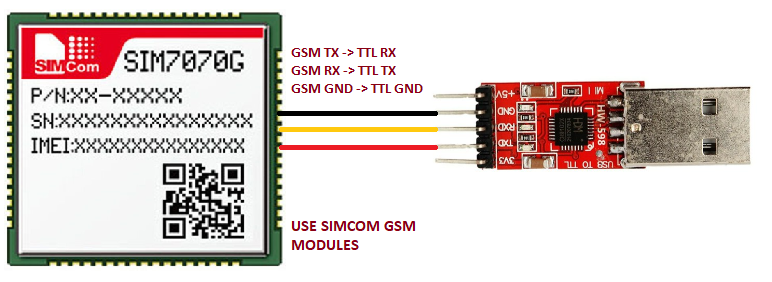
Note: The GSM TESTER Application are only contains the automatic HTTP Connect Option for SIMCOM Modules because of the other modules AT Commands are different so the HTTP CONNECT button only supports SIMCOM Modules and Otherwise you can use manual AT Test for all type of GSM Modules, it can works fine.
GSM modules cannot be powered by USB-TTL alone because they draw high current during network bursts. Always use a proper power source.
Once everything is connected, open GSM_TESTER, select the COM port, choose baudrate 9600, and click “Connect.”
Full Code of the GSM_TESTER Project
Below is the complete Python source code for the GSM_TESTER tool exactly as you provided, formatted cleanly and ready for reference or customization.
import tkinter as tk
from tkinter import ttk, simpledialog, messagebox, scrolledtext
import serial
import serial.tools.list_ports
import threading
import queue
import time
import datetime
import sys

READ_TIMEOUT = 0.5
MAX_RETRIES = 20
CGACT_RETRIES = 5
CSQ_SIGNAL_THRESHOLD = 10


def timestamp():
    return datetime.datetime.now().strftime("%Y-%m-%d %H:%M:%S")


class ATTesterApp:
    def __init__(self, root):
        self.root = root
        root.title("AT Command Tester")
        root.geometry("900x600")
        root.protocol("WM_DELETE_WINDOW", self.on_close)

        self.serial = None
        self.read_thread_stop = threading.Event()
        self.rx_queue = queue.Queue()
        self.response_buffer = queue.Queue()

        # Layout
        main = ttk.Frame(root, padding=8)
        main.pack(fill=tk.BOTH, expand=True)
        sidebar = ttk.Frame(main, width=280)
        body = ttk.Frame(main)
        sidebar.pack(side=tk.LEFT, fill=tk.Y)
        body.pack(side=tk.LEFT, fill=tk.BOTH, expand=True)

        # Sidebar widgets
        ttk.Label(sidebar, text="Serial Port:").pack(anchor=tk.W)
        self.port_cb = ttk.Combobox(sidebar, values=self.get_serial_ports(), state="readonly")
        self.port_cb.pack(fill=tk.X)
        if self.port_cb["values"]:
            self.port_cb.current(0)

        ttk.Label(sidebar, text="Baudrate:").pack(anchor=tk.W, pady=(8, 0))
        self.baud_cb = ttk.Combobox(sidebar, values=[9600, 19200, 38400, 57600, 115200, 921600], state="readonly")
        self.baud_cb.pack(fill=tk.X)
        self.baud_cb.set(9600)

        ttk.Button(sidebar, text="Refresh Ports", command=self.refresh_ports).pack(fill=tk.X, pady=(8, 0))
        self.connect_btn = ttk.Button(sidebar, text="Connect", command=self.connect)
        self.connect_btn.pack(fill=tk.X, pady=(10, 0))
        self.disconnect_btn = ttk.Button(sidebar, text="Disconnect", command=self.disconnect, state=tk.DISABLED)
        self.disconnect_btn.pack(fill=tk.X, pady=(5, 0))

        ttk.Separator(sidebar, orient=tk.HORIZONTAL).pack(fill=tk.X, pady=8)
        self.connect_gsm_btn = ttk.Button(sidebar, text="Connect GSM", command=self.connect_gsm, state=tk.DISABLED)
        self.connect_gsm_btn.pack(fill=tk.X, pady=(5, 0))

        ttk.Separator(sidebar, orient=tk.HORIZONTAL).pack(fill=tk.X, pady=8)
        self.http_btn = ttk.Button(sidebar, text="Send HTTP ATs", command=self.send_http_sequence, state=tk.DISABLED)
        self.http_btn.pack(fill=tk.X, pady=(5, 0))

        ttk.Separator(sidebar, orient=tk.HORIZONTAL).pack(fill=tk.X, pady=8)
        ttk.Label(sidebar, text="Manual AT:").pack(anchor=tk.W, pady=(6, 0))
        self.manual_entry = ttk.Entry(sidebar)
        self.manual_entry.pack(fill=tk.X)
        self.manual_send_btn = ttk.Button(sidebar, text="Send", command=self.send_manual_at, state=tk.DISABLED)
        self.manual_send_btn.pack(fill=tk.X, pady=(6, 0))

        # Body
        ttk.Label(body, text="TX / RX Log:").pack(anchor=tk.W)
        self.log_text = scrolledtext.ScrolledText(body, wrap=tk.WORD)
        self.log_text.pack(fill=tk.BOTH, expand=True)
        self.status_var = tk.StringVar(value="Disconnected")
        ttk.Label(root, textvariable=self.status_var, relief=tk.SUNKEN, anchor=tk.W).pack(fill=tk.X, side=tk.BOTTOM)

        self.root.after(100, self.flush_rx_queue)

    # Serial Handling --------------------------------------------------------
    def get_serial_ports(self):
        return [p.device for p in serial.tools.list_ports.comports()]

    def refresh_ports(self):
        vals = self.get_serial_ports()
        self.port_cb["values"] = vals
        if vals:
            self.port_cb.set(vals[0])
        self.log("INFO", "Ports refreshed")

    def connect(self):
        port = self.port_cb.get()
        if not port:
            messagebox.showwarning("Port required", "Select a port.")
            return
        baud = int(self.baud_cb.get())
        try:
            self.serial = serial.Serial(port, baudrate=baud, timeout=READ_TIMEOUT)
        except Exception as e:
            messagebox.showerror("Error", str(e))
            return

        self.read_thread_stop.clear()
        threading.Thread(target=self.reader_loop, daemon=True).start()
        self.connect_btn.config(state=tk.DISABLED)
        self.disconnect_btn.config(state=tk.NORMAL)
        self.connect_gsm_btn.config(state=tk.NORMAL)
        self.http_btn.config(state=tk.NORMAL)
        self.manual_send_btn.config(state=tk.NORMAL)
        self.status_var.set(f"Connected to {port} @ {baud}")
        self.log("INFO", f"Connected to {port} @ {baud}")

    def disconnect(self):
        if self.serial and self.serial.is_open:
            self.read_thread_stop.set()
            try:
                self.serial.close()
            except:
                pass
        self.serial = None
        self.connect_btn.config(state=tk.NORMAL)
        self.disconnect_btn.config(state=tk.DISABLED)
        self.connect_gsm_btn.config(state=tk.DISABLED)
        self.http_btn.config(state=tk.DISABLED)
        self.manual_send_btn.config(state=tk.DISABLED)
        self.status_var.set("Disconnected")
        self.log("INFO", "Disconnected")

    def reader_loop(self):
        s = self.serial
        while not self.read_thread_stop.is_set() and s and s.is_open:
            try:
                data = s.read(1024)
            except Exception as e:
                self.rx_queue.put(("ERROR", f"Read error: {e}"))
                break
            if data:
                text = data.decode(errors="replace")
                self.rx_queue.put(("RX", text))
                self.response_buffer.put(text)
        self.rx_queue.put(("INFO", "Reader thread stopped"))

    # Logging --------------------------------------------------------
    def log(self, kind, msg):
        line = f"[{timestamp()}] [{kind}] {msg}\n"
        self.log_text.insert(tk.END, line)
        self.log_text.see(tk.END)

    def flush_rx_queue(self):
        while not self.rx_queue.empty():
            kind, txt = self.rx_queue.get()
            for line in txt.splitlines():
                self.log(kind, line)
        self.root.after(100, self.flush_rx_queue)

    # AT Handling --------------------------------------------------------
    def send_at(self, cmd):
        if not self.serial or not self.serial.is_open:
            return False
        cmd_line = cmd.strip() + "\r\n"
        try:
            self.serial.write(cmd_line.encode())
            self.log("TX", cmd)
            return True
        except Exception as e:
            self.log("ERROR", f"Failed to send: {e}")
            return False

    def send_at_wait_retry(self, cmd, wait_for="OK", timeout=5, max_retries=MAX_RETRIES):
        attempt = 1
        while attempt <= max_retries:
            if not self.send_at(cmd):
                return False
            start = time.time()
            buffer = ""
            got_response = False
            while time.time() - start < timeout:
                try:
                    data = self.response_buffer.get(timeout=0.2)
                    buffer += data
                    if wait_for in buffer:
                        self.log("INFO", f"'{cmd}' → OK (attempt {attempt})")
                        got_response = True
                        break
                    elif "ERROR" in buffer:
                        self.log("WARN", f"'{cmd}' → ERROR (attempt {attempt})")
                        got_response = True
                        break
                except queue.Empty:
                    continue
            if got_response:
                return "OK" in buffer
            self.log("WARN", f"No response for '{cmd}' (try {attempt}/{max_retries})")
            attempt += 1
            time.sleep(0.5)
            if attempt > max_retries:
                self.log("ERROR", "No response after max retries. Restarting link...")
                self.restart_at_link()
                return False
        return False

    def restart_at_link(self):
        self.log("INFO", "Restarting AT communication...")
        for i in range(10):
            self.send_at("AT")
            start = time.time()
            buffer = ""
            while time.time() - start < 3:
                try:
                    data = self.response_buffer.get(timeout=0.2)
                    buffer += data
                    if "OK" in buffer:
                        self.log("INFO", f"AT link restored after {i+1} tries.")
                        return True
                except queue.Empty:
                    continue
            time.sleep(0.5)
        self.log("ERROR", "Failed to restore AT link. Check connection.")
        return False

    # UI Actions --------------------------------------------------------
    def send_manual_at(self):
        cmd = self.manual_entry.get().strip()
        if cmd:
            threading.Thread(target=lambda: self.send_at_wait_retry(cmd), daemon=True).start()

    def connect_gsm(self):
        def worker():
            self.send_at_wait_retry("AT")
            self.send_at_wait_retry("ATE0")
            self.send_at_wait_retry("AT+CPIN?")
            self.log("INFO", "Checking signal...")
            while True:
                self.send_at("AT+CSQ")
                time.sleep(1)
                data = ""
                while not self.response_buffer.empty():
                    try:
                        data += self.response_buffer.get_nowait()
                    except queue.Empty:
                        break
                if "+CSQ:" in data:
                    try:
                        rssi = int(data.split(":")[1].split(",")[0].strip())
                    except:
                        rssi = 99
                    self.log("INFO", f"Signal RSSI: {rssi}")
                    if rssi == 99:
                        self.log("WARN", "No signal yet... waiting...")
                        time.sleep(2)
                        continue
                    else:
                        self.log("INFO", f"Signal detected (RSSI={rssi})")
                        self.root.after(0, self.prompt_and_set_apn)
                        return
                time.sleep(1)

        threading.Thread(target=worker, daemon=True).start()

    def prompt_and_set_apn(self):
        apn = simpledialog.askstring("APN", "Enter APN:", parent=self.root)
        if apn:
            threading.Thread(target=lambda: self.send_at_wait_retry(f'AT+CGDCONT=1,"IP","{apn}"'), daemon=True).start()
            self.log("INFO", f"APN set to {apn}")
        else:
            self.log("INFO", "APN entry cancelled.")

    def send_http_sequence(self):
        url = simpledialog.askstring("HTTP URL", "Enter full URL (http://...):", parent=self.root)
        if not url:
            return
        apn = simpledialog.askstring("APN", "Enter APN:", parent=self.root)
        if not apn:
            return

        def worker():
            self.send_at_wait_retry("AT")
            self.send_at_wait_retry("ATE0")
            self.send_at_wait_retry("AT+CPIN?")
            self.send_at_wait_retry("AT+CREG?")
            self.send_at_wait_retry("AT+CGATT=1")
            self.send_at_wait_retry(f'AT+CGDCONT=1,"IP","{apn}"')

            # ---- Try to activate PDP ----
            success = False
            for i in range(CGACT_RETRIES):
                self.send_at("AT+CGACT=1,1")
                time.sleep(2)
                self.send_at("AT+CGACT?")
                time.sleep(1)
                data = ""
                while not self.response_buffer.empty():
                    try:
                        data += self.response_buffer.get_nowait()
                    except queue.Empty:
                        break
                if "+CGACT: 1,1" in data:
                    self.log("INFO", f"PDP context active after {i+1} tries.")
                    success = True
                    break
                else:
                    self.log("WARN", f"PDP not active yet (attempt {i+1})")
                    time.sleep(2)
            if not success:
                self.log("ERROR", "Failed to activate PDP context.")
                return

            self.send_at_wait_retry("AT+CGPADDR")
            self.send_at_wait_retry("AT+SHDISC")
            self.send_at_wait_retry("AT+SHINIT")

            self.send_at_wait_retry(f'AT+SHCONF="URL","{url}"')
            self.send_at_wait_retry(f'AT+SHCONF="BODYLEN",2048')
            self.send_at_wait_retry(f'AT+SHCONF="HEADERLEN",350')

            if not self.send_at_wait_retry("AT+SHCONN"):
                self.log("ERROR", "HTTP connection failed (SHCONN ERROR).")
                return

            self.send_at_wait_retry(f'AT+SHREQ="{url}",1', timeout=20)
            self.send_at_wait_retry(f'AT+SHREAD=0,2048', timeout=15)
            self.send_at_wait_retry("AT+SHDISC")
            self.log("INFO", "HTTP sequence complete.")

        threading.Thread(target=worker, daemon=True).start()

    def on_close(self):
        self.read_thread_stop.set()
        time.sleep(0.05)
        try:
            if self.serial and self.serial.is_open:
                self.serial.close()
        except:
            pass
        self.root.destroy()


if __name__ == "__main__":
    try:
        import serial
    except:
        print("Please install pyserial: pip install pyserial")
        sys.exit(1)

    root = tk.Tk()
    ATTesterApp(root)
    root.mainloop()
How to Use GSM_TESTER for Complete GSM Connectivity Testing
Using this GSM connectivity testing tool is extremely simple. Here’s the workflow:
- Connect your GSM module to USB-TTL.
- Power the GSM module.
- Open GSM_TESTER.exe.
- Select COM port.
- Select baudrate (9600 recommended).
- Click “Connect” to open the serial link.
- Send “AT” manually to test module response.
- Click “Connect GSM” for automatic GSM network setup.
- Enter APN when prompted.
- Click “Send HTTP ATs” to test internet connectivity.
Your GSM module is now fully tested.
AT Commands You Can Test with GSM_TESTER
Some commonly used commands include:
- AT – checks if module is alive
- ATE0 – disables echo
- AT+CSQ – shows signal strength
- AT+CPIN? – checks SIM status
- AT+CREG? – checks network registration
- AT+CGATT? – checks data attachment
- AT+CGDCONT=1,”IP”,”APN” – sets APN
- AT+CGACT=1,1 – activates data context
- AT+HTTPINIT – initializes HTTP
- AT+HTTPACTION=0 – sends GET request
- AT+HTTPREAD – reads server response
GSM_TESTER automates most of these commands.
Why GSM_TESTER Is Ideal for IoT Projects
It simplifies the entire GSM testing process.
Most developers struggle when debugging GSM modules because the AT command process is long and the responses are sometimes confusing. GSM_TESTER removes this complexity by providing both automatic and manual control.
It helps you solve issues such as:
- No network
- Poor signal
- Incorrect APN
- HTTP not working
- SIM not detected
- Slow registration
- PDP activation failures
By using this tool before integrating GSM into your IoT device, you can eliminate 95% of communication problems early.
Frequently Asked Questions About GSM Connectivity Testing Tools
What is the purpose of a GSM connectivity testing tool?
It is used to test AT commands, GSM signal, SIM readiness, APN configuration, and internet connectivity on any GSM module.
Can GSM_TESTER work with SIM7070G or SIM800?
Yes, it supports all GSM modules that use AT commands.
Do I need programming knowledge to use GSM_TESTER?
No. The software is designed for beginners and professionals alike.
Why is my GSM module not responding?
It could be due to wrong baudrate, incorrect wiring, or insufficient power supply.
Can this tool test HTTP APIs?
Yes. GSM_TESTER has a built-in HTTP testing option.
Conclusion
A reliable GSM connectivity testing tool is essential for anyone working with GSM, LTE, or NB-IoT modules. GSM_TESTER makes the process incredibly simple by combining manual AT testing, automatic GSM setup, APN configuration, and HTTP tests in a single application. It saves time, reduces development effort, and ensures that your GSM module is functioning correctly before deploying it in an IoT project.
Recommended External Links (Dofollow)
To ensure compatibility with GSM modules, the tool follows standard AT command formats defined by 3GPP, which you can review in the official 3GPP AT command documentation at https://www.3gpp.org/ftp/Specs/archive/27_series/27.007/.
The serial communication inside the software uses the PySerial library, and developers can learn more about it at https://pyserial.readthedocs.io/en/latest/.
For module-specific AT commands, you can refer to the SIMCom official command manuals available at https://www.simcom.com/product/techsupport.html.
If your network requires a custom APN, you can verify operator settings using the GSMA database at https://www.gsma.com/aboutus/workinggroups/fixed-wireless-access/
Article Information
Author: zealyen.it
Last Updated: February 22, 2026
This article is part of our practical learning series focused on embedded systems, STM32, Arduino, and IoT.


One thought on “GSM Connectivity Testing Tool – Complete Friendly Guide for AT Commands, GSM Modules, APN Setup & HTTP Testing”