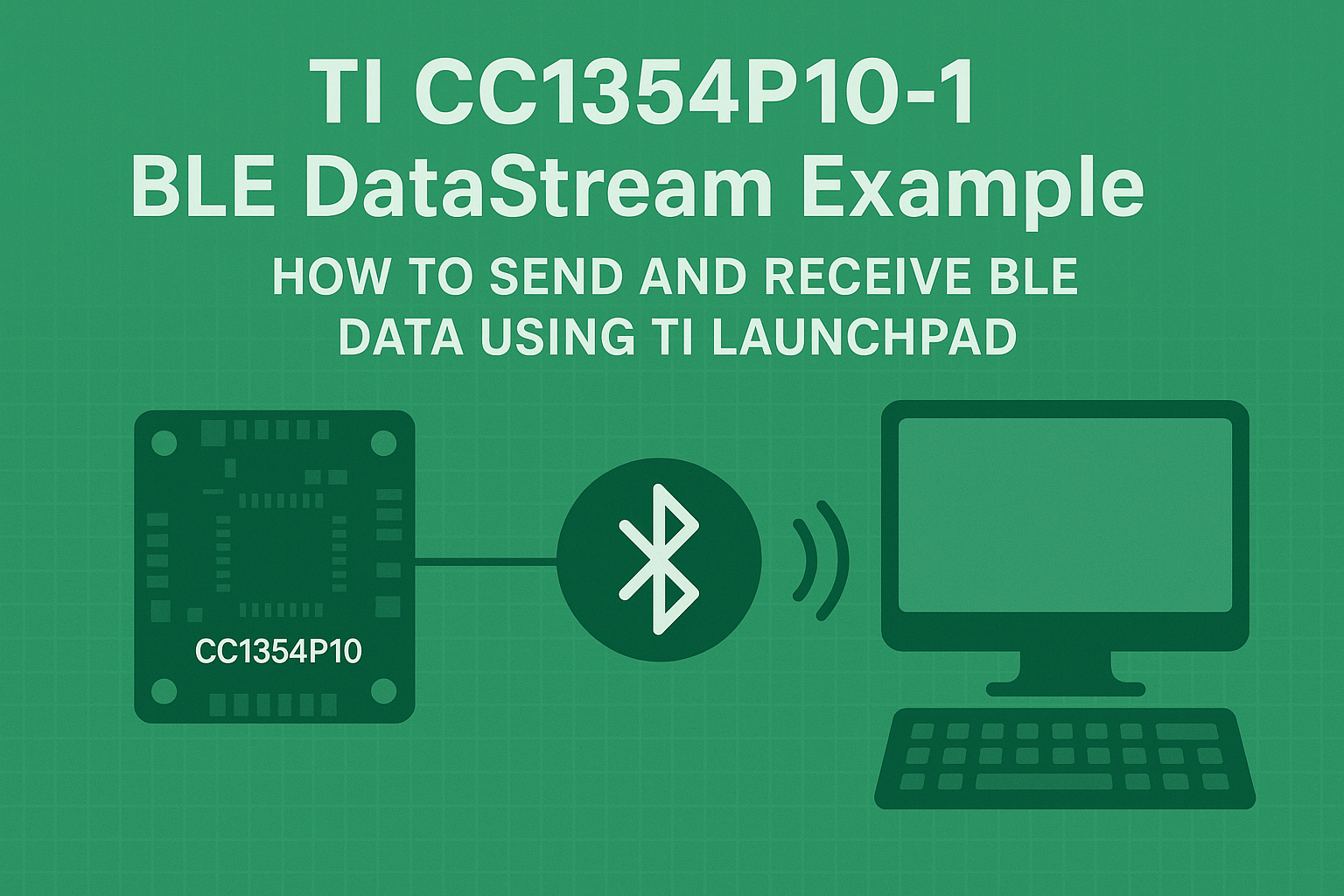
Sending and Receiving BLE Data on TI CC1354P10-1 LaunchPad (DataStream Example Guide)
TI CC1354P10-1 BLE DataStream example is one of the most practical ways to learn Bluetooth Low Energy (BLE) communication on Texas Instruments’ LaunchPad. Whether you’re streaming sensor data or sending control commands, this example shows exactly how to send and receive BLE data reliably between your TI CC1354P10-1 and a smartphone app. In this guide, we’ll fix the 20-byte BLE limitation, prevent memory overflow, and enable stable two-way BLE communication.
Bluetooth Low Energy (BLE) is one of the most efficient wireless communication technologies for IoT and embedded applications. Whether you’re streaming sensor data, controlling a device remotely, or logging information to a mobile app, BLE provides a lightweight and low-power way to exchange data between an MCU and a smartphone.
If you’re using Texas Instruments’ CC1354P10-1 LaunchPad, you probably know that TI provides excellent example projects in its SimpleLink SDK — including Project Zero and DataStream. These examples make BLE development much easier, but as many developers discover, sending data larger than 20 bytes through BLE notifications can cause serious issues — including freezes, hangs, or even system crashes.
In this article, I’ll share how I solved this issue when working with the DataStream example on the TI CC1354P10-1 board. I’ll explain why the freeze happens, what changes you need to make to the example, and how to send and receive larger BLE data packets safely without memory overflow.
The steps and code shared here are tested, stable, and easy to reproduce — even if you’re new to BLE development.
Why Use the DataStream Example?
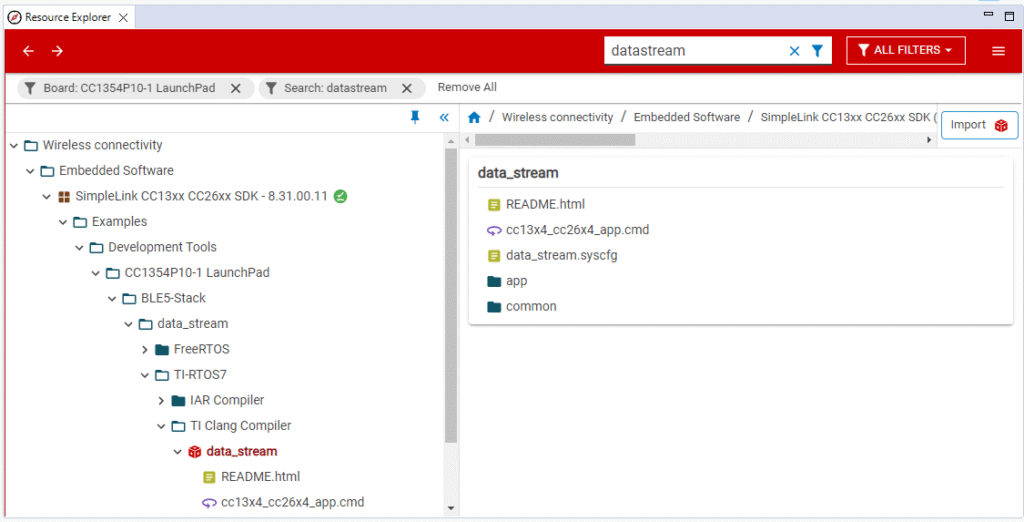
Texas Instruments provides multiple BLE examples in the SimpleLink SDK. One of the most beginner-friendly and flexible ones is the DataStream example, found in the following directory:
<SDK_PATH>/examples/rtos/CC1354P10-1_LAUNCHXL/common/services/data_stream/
The DataStream example is designed to:
- Demonstrate BLE notifications and characteristics.
- Show how to transmit and receive data in real time.
- Offer a clear, minimal setup compared to Project Zero.
In short, it’s the perfect starting point if you want to quickly test BLE data exchange or integrate BLE communication into a custom project.
However, by default, the example is limited to sending 20 bytes per BLE notification, and if you try to send longer data, the MCU can hang or freeze. Let’s understand why.
The TI CC1354P10-1 BLE DataStream example provided in the SimpleLink CC13xx/CC26xx SDK is a great foundation for BLE projects.
The 20-Byte BLE Data Limitation
BLE has a concept called MTU — Maximum Transmission Unit. By default, BLE 4.x supports an MTU size of 23 bytes, out of which 3 bytes are used for protocol overhead, leaving 20 bytes for actual data.
If your firmware tries to send more than 20 bytes at once using a BLE notification, but your connection’s MTU has not been increased, the BLE stack may:
- Split the data incorrectly.
- Overrun the internal buffer.
- Or fail to release the allocated GATT memory.
This is exactly what happens in the unmodified DataStream example. When you try to transmit more than 20 bytes through the function:
status = DSP_sendData(data_out1, sizeof(data_out1));
it works fine for smaller packets but freezes when you exceed that limit.
The main cause is memory overflow inside the BLE notification buffer — the SDK doesn’t automatically clear it, so it keeps consuming memory until the system runs out of available space.
The Root Cause: Unreleased BLE Notification Buffers
Inside the BLE stack, every time you send a notification, memory is allocated for that data. If you don’t explicitly release this memory after sending, it remains occupied.
In the data_stream_server.c file, the example uses a noti structure to handle BLE notifications, but it never clears the buffer after transmission. When you continuously send or receive data, this memory keeps accumulating, and after several packets, the MCU stops responding.
So to fix the freezing issue, we need to make sure the notification memory is released after each send operation.
Step 1: Replace the Default Incoming Data Callback
The first step is to modify the function that handles incoming BLE data — DS_incomingDataCB().
By default, it processes the received data but doesn’t validate it properly or handle errors gracefully.
We’ll replace it with a safer version that:
- Toggles LEDs to indicate data activity.
- Validates the input before sending a response.
- Uses
DSP_sendData()in a controlled way to prevent buffer issues.
Here’s the modified version:
static void DS_incomingDataCB(uint16 connHandle, char *pValue, uint16 len)
{
    bStatus_t status = SUCCESS;
    char data_out[32];

    MenuModule_clearLines(APP_MENU_PROFILE_STATUS_LINE1,
                          APP_MENU_PROFILE_STATUS_LINE3);

    // Indicate data reception using onboard LEDs
    GPIO_toggle(CONFIG_GPIO_LED_RED);
    GPIO_toggle(CONFIG_GPIO_LED_GREEN);

    // Validate incoming data length
    if (len == 0)
    {
        strcpy(data_out, "{Error}\r\n");
        DSP_sendData((uint8*) data_out, strlen(data_out));
        return;
    }

    char command = pValue[1];

    switch (command)
    {
        case 't':
        {
            char dataOut1[64] = "Assign Custom data";
            status = DSP_sendData((uint8*)dataOut1, strlen(dataOut1));
            break;
        }

        default:
            strcpy(data_out, "{Error}\r\n");
            status = DSP_sendData((uint8*)data_out, strlen(data_out));
            break;
    }

    if (status == SUCCESS && command != 't')
    {
        MenuModule_printf(12, 0, "Sent: %s", data_out);
    }
    else if (status != SUCCESS)
    {
        MenuModule_printf(APP_MENU_PROFILE_STATUS_LINE3, 0,
                          "Send Error: %d", status);
    }
}
Explanation
- The function validates the received BLE packet. If it’s empty, it sends
{Error}back to the app. - When the app sends the command
't', the MCU replies with"Assign Custom data". - The LEDs toggle each time new BLE data is received, giving visual feedback.
- If something goes wrong, the error is printed through the menu module for debugging.
This callback is simple but reliable — it isolates the send logic and prevents corrupted or malformed BLE data from crashing the system.
Step 2: Modify data_stream_server.c to Free Memory After Sending
Now that we’ve stabilized the callback, we’ll fix the real cause of the freeze — unfreed GATT buffers.
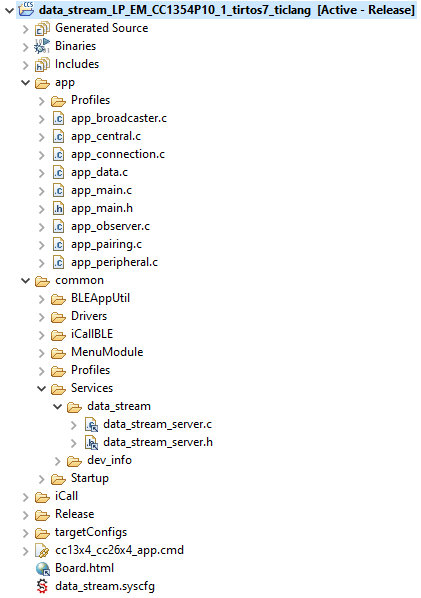
Open the file:
common > services > data_stream > data_stream_server.cand go to around line 452, where the BLE notification send logic is handled.
What You Need to Do
- Copy the line that contains the
GATT_bm_free()function call. - Paste it before the
if (status != SUCCESS)condition. - Change
(gattMsg_t*)¬ito(gattMsg_t*)noti.pValue. - Add
noti.pValue = NULL;after freeing the memory.
This modification ensures that the buffer used for the BLE notification is released immediately after sending.
Without this fix, the buffer keeps consuming RAM each time a notification is sent — eventually causing a system lockup.
Step 3: Rebuild, Flash, and Test
Once you’ve made these two code changes, rebuild your project in Code Composer Studio (CCS) or TI’s SysConfig environment, and flash it to your CC1354P10-1 LaunchPad.
Testing Steps
- Open a BLE testing app like nRF Connect, BLE Scanner, or LightBlue on your smartphone.
- Power up your TI board — it will advertise as “DataStream”.
- Connect to it from the app.
- Enable notifications for the DataStream characteristic.
- In the app’s write section, send a single character:
t.
You should see the MCU respond immediately with:
Assign Custom data
If you send an empty or incorrect command, it should reply with:
{Error}
Also, observe the red and green LEDs toggling each time data is received — confirming that the BLE callback is active.
Understanding What’s Happening Internally
When you send 't' from the app:
- The BLE stack receives the write command and triggers
DS_incomingDataCB(). - The MCU validates the command and prepares the response in
dataOut1[]. DSP_sendData()transmits the response using BLE notifications.- The modified code in
data_stream_server.cfrees the GATT buffer once the send operation completes.
Because memory is released correctly, the MCU can now handle continuous communication — even larger packets or back-to-back notifications — without crashing.
Why This Approach Works
Many developers try to fix this issue by increasing the MTU size or reducing the packet rate. While those can help, they don’t address the real cause — unreleased memory.
The fix you’ve just implemented directly tackles the source of the problem:
GATT_bm_free()ensures allocated BLE memory is returned to the pool.noti.pValue = NULL;ensures that any future writes don’t reuse invalid memory.- The custom callback makes sure data handling is safe, predictable, and easy to debug.
Troubleshooting Common Issues
If you still experience freezing or instability, try these checks:
1. Validate Buffer Lengths
Make sure your outgoing buffer (like dataOut1[]) doesn’t exceed your MTU size. By default, BLE allows 20 bytes per packet unless negotiated higher.
2. Monitor Connection Parameters
Some BLE apps or devices enforce strict notification intervals. If you send too quickly, the stack might reject packets. Add a short delay or implement flow control if necessary.
3. Debug Using UART
Use MenuModule_printf() or UART logs to monitor exactly when data is sent and received. This helps confirm that your callback is firing and your send function isn’t failing silently.
4. Check BLE Stack Configuration
If you’ve modified your BLE stack project settings, make sure the heap and stack sizes are sufficient to handle continuous notifications.
Example BLE Interaction
Here’s an example session between the BLE app and the CC1354P10-1:
| BLE App Request | MCU Response | Description |
|---|---|---|
t | Assign Custom data | Valid command, sends custom message |
{} | {Error} | Invalid format |
| Empty packet | {Error} | No data received |
Continuous t writes | Repeated responses, no freeze | Stable continuous data flow |
This setup provides a solid baseline for two-way BLE communication — reliable, validated, and scalable.
Comparison: DataStream vs ProjectZero
While ProjectZero is TI’s most popular BLE demo, it’s also quite large and complex. The DataStream example is more compact, which makes it easier to:
- Integrate into custom firmware.
- Test BLE notifications quickly.
- Debug and modify for specific needs.
With the modifications shown above, the DataStream example becomes even more powerful — offering stability and simplicity without the overhead of ProjectZero.
Going Beyond: Expanding BLE Capability
Now that your BLE data exchange is stable, you can extend it further.
Here are a few advanced enhancements you might consider:
1. Increase MTU Size
You can configure your BLE connection to support larger MTU sizes (up to 247 bytes for BLE 5.0). This allows longer data payloads per notification.
2. Implement Packet Chaining
For sending data larger than your MTU, split it into smaller packets and reassemble it on the receiving side.
3. Add Data Integrity Checks
Include checksums or CRC validation in your BLE messages to detect errors during transmission.
4. Use BLE Indications for Reliable Delivery
If you need guaranteed delivery instead of best-effort notifications, use BLE indications — they require acknowledgment from the receiver.
5. Integrate with RTOS Tasks
If your project runs under TI-RTOS or FreeRTOS, consider dedicating a separate task for BLE communication to avoid blocking your main application logic.
Key Takeaways
Let’s summarize the important lessons from this guide:
- BLE’s 20-byte limit is a default constraint; exceeding it without proper handling can crash the MCU.
- The DataStream example is simple but needs small modifications for stability.
- Always free the GATT buffers after each BLE notification using
GATT_bm_free(). - Replace the
DS_incomingDataCB()function with a safer, validated version. - Test thoroughly using mobile BLE apps like nRF Connect or BLE Scanner.
- Proper memory management is the key to reliable BLE communication.
Engineering Insight
One of the most valuable lessons in embedded systems is this:
“Just because the SDK provides an example doesn’t mean it’s production-ready.”
Always test examples under stress conditions — rapid notifications, long data streams, and continuous commands. That’s how you uncover subtle bugs like memory leaks or unfreed buffers.
The fix you’ve applied here is a real-world example of deep debugging — understanding the underlying cause, not just patching symptoms.
Final Thoughts
The TI CC1354P10-1 is a powerful multi-protocol MCU capable of handling BLE, Sub-1 GHz, and other wireless communication simultaneously. With the right tweaks, you can make it a rock-solid platform for industrial, sensor, or IoT applications.
By modifying the DataStream example as shown:
- You eliminate freezes caused by BLE memory overflow.
- You can safely send and receive larger data packets.
- You gain a clear understanding of how BLE notifications and memory management work under the hood.
Whether you’re a beginner experimenting with BLE or an embedded engineer building a full IoT product, this approach provides a stable, reusable BLE communication layer.
Conclusion
If your CC1354P10-1 BLE application freezes when sending large data, the fix is simple but essential:
- Replace the incoming data callback with the improved version.
- Free your notification memory buffer correctly in
data_stream_server.c.
After these two changes, your system will stay stable even during continuous BLE data transfer.
So go ahead — build, flash, connect, and test your new, improved DataStream BLE application.
You’ll see consistent, reliable performance and no more system lockups.
For more development resources and BLE project examples, visit the Texas Instruments LaunchPad BLE page.
“Fixing Memory Overflow in the TI CC1354P10-1 BLE DataStream Example”
For detailed information on BLE memory management, refer to TI’s BLE5-Stack User’s Guide.
Written by Vandhupar.com
Embedded Systems & IoT Tutorials for Real Engineers.
Keywords
CC1354P10-1 BLE, TI DataStream example, Bluetooth Low Energy notification, DSP_sendData, GATT_bm_free memory overflow, BLE 20-byte limit, CC1354P10-1 BLE tutorial, TI BLE data transmission, SimpleLink BLE example, TI BLE memory fix, DataStream TI example, BLE notification freeze, CC1354 BLE project, TI BLE GATT example, TI LaunchPad BLE.
Article Information
Author: zealyen.it
Last Updated: February 22, 2026
This article is part of our practical learning series focused on embedded systems, STM32, Arduino, and IoT.